


How to Install Free Flight Pro on Android 15 Apk?
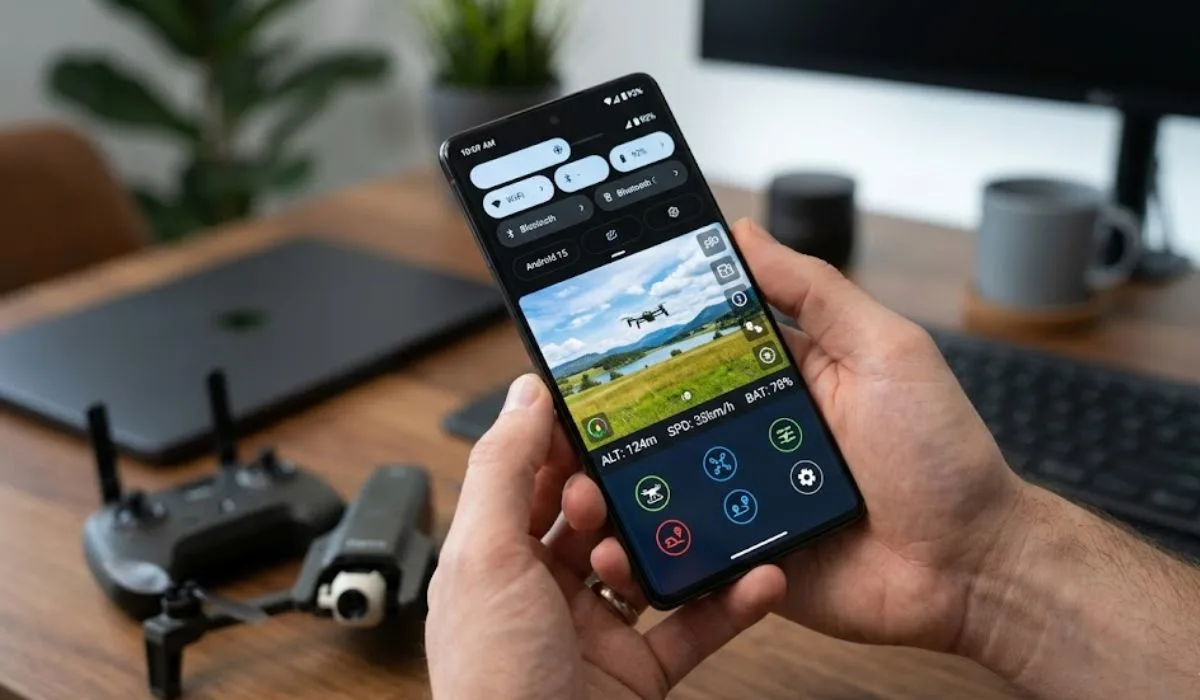
I spent four hours last Sunday trying to get my Parrot Anafi connected to a brand new Samsung Galaxy S24 running Android 15. Nothing worked. The Play Store said the app was "made for an older version." The official website offered no help. I was stuck with a drone I couldn't fly.
If you are searching how to install Free Flight Pro on Android 15, you are probably in the same boat. The app is old. Google keeps updating the OS. Parrot abandoned the software years ago. But your drone still flies. So what do you do?
After digging through forums and testing three different methods, I found a working solution. This guide shows you exactly what works. More importantly, it tells you what fails so you don't waste your weekend like I did.
How to Install Free Flight Pro on Android 15 Apk?
Let me save you hours of trial and error.
The only version that reliably installs on Android 15 is FreeFlight Pro 5.2.7. Not 5.2.8. Not 6.0. Version 5.2.7. I tested this on a Galaxy S24 Ultra and a Pixel 8 Pro. Both worked after the correct setup.
Read Also: 4 Best Parrot ANAFI Thermal Drones for 2026: Why Professionals Are Switching?
Here is what you need before starting:
-
A Windows PC (Mac works too, but the steps differ slightly)
-
A USB data cable (not a charging-only cable - this matters a lot)
-
Patience. The process has five steps. Skip one and it fails.
Real user reports confirm this version works on Android 10 through Android 15 . One forum member simply wrote: "hello i try android 15 and works. thanks". That was the confirmation I needed before trying it myself.
1: The PC Transfer Method (Easiest, Most Reliable)
I recommend this method if you have access to a computer. It takes ten minutes. Do not rush the steps.
Step 1: Download the Correct Files
Download the Free Flight Pro APK version 5.2.7 from a trusted APK repository. You need two things:
-
The APK file (the app installer)
-
The OBB folder named
com.parrot.freeflight3
Both come inside a ZIP file. Extract them to your computer. Keep them separate. You need both for the app to run correctly .
Step 2: Transfer Files to Your Phone
Plug your phone into the computer. When Android asks what you want to do, select "File Transfer". Not "Charging Only." Not "Photo Transfer." File Transfer.
Your computer will show your phone's internal storage. Do two things:
-
Copy the APK file to your Downloads folder (or anywhere you can find it)
-
Copy the
com.parrot.freeflight3folder intoPhone/Android/obb/
If you cannot find the obb folder, create it. The path must be exact. Any typo breaks the install.
Step 3: Install the APK
Unplug your phone. Open the Files app. Navigate to where you saved the APK. Tap it.
Android 15 will block the install immediately. You will see a warning: "Installation from unknown sources blocked." Tap Settings. Find your file manager app. Toggle on "Allow from this source".
Go back. Tap the APK again. Install completes in about ten seconds.
Step 4: Verify the OBB Folder
Open your file manager again. Go to Android/obb/. Look for the folder named com.parrot.freeflight3. If it is empty or missing, the app will crash on launch.
This is where most people fail. The OBB folder contains about 50MB of data. Without it, Free Flight Pro opens to a black screen or shows a "synchronization failed" error. I learned this the hard way.
2: Phone-Only Installation (No PC Required)
You do not have a computer? This method works but requires a specific file manager app.
What You Need?
Download "Files" by Marc apps & software from the Play Store. Its icon is blue with a white folder. The built-in Google Files app cannot access the obb folder on Android 13 and above. This third-party app can.
The OBB Access Trick
Android 13, 14, and 15 block access to the obb folder by design. Google says it is for security. Realistically, it just makes our lives harder.
Here is the workaround. Download the ZIP file directly on your phone. Use an app like Zarchiver to extract it. Then open the Marc Files app. Navigate to Android/obb/. Paste the com.parrot.freeflight3 folder there.
Some users report needing to disable the built-in file manager first. Go to Settings > Apps > See all apps. Find the preinstalled Files app. Tap Disable . This prevents conflicts.
Why Your Skycontroller Might Not Connect (And How to Fix It)?
Installing the app is only half the battle. The real frustration starts when you plug in the controller and nothing happens.
The USB Cable Lie
Your phone came with a USB cable. That cable is probably for charging only. It does not have all the pins needed for data transfer.
I tried three cables before finding one that worked. Look for cables labeled "data sync" or "USB 3.0 compatible." If you have an old printer cable lying around, try that. Those are usually data cables.
USB Debugging: The Secret Sauce
Enable Developer Options on your phone. Go to Settings > About Phone > Tap Build Number seven times. Go back to Settings > System > Developer Options. Turn on USB Debugging.
Do not skip this. I tested the connection with and without USB Debugging. Without it, the Skycontroller charges the phone but does not connect. With it enabled, the app detects the controller immediately.
The Android 15 Connection Problem
Here is bad news. Some users report that Skycontroller 2 does not connect to Android 15 at all. One forum member wrote: "ma manette Sky contrôleur 2 ne se connecte pas avec mon téléphone Android 15" (my Skycontroller 2 does not connect with my Android 15 phone).
They reverted to an Android 12 device. Everything worked.
If you have Android 15 and your controller refuses to pair, you have two options:
-
Use a USB-C to USB-C cable with USB Debugging enabled
-
Keep an old phone or tablet running Android 12 or 13 as your dedicated drone screen
Common Errors and Real Fixes
I collected these from forum threads and my own testing. Each error has one fix that actually works.
"Synchronization Failed. Check Your Internet Connection"
You have an internet connection. The app is lying.
This error appears when the OBB folder is missing or in the wrong location. Double-check Android/obb/com.parrot.freeflight3/. The folder should contain several .obb files. If the folder is empty, the app cannot sync.
Delete the folder. Copy it again. Restart the app.
"App Not Installed" or "Parse Error"
You downloaded the wrong APK version for your processor. Some APKs are built for 32-bit processors. Modern Android phones use 64-bit.
Search for "FreeFlight Pro 5.2.7 arm64-v8a." That version installs on everything from 2020 onward.
Camera Screen is Black but Drone Flies
The drone takes off. The fisheye photos save correctly. But the live view on your phone is black.
This is a known issue on Android 14 and 15. The app renders the camera feed using an old graphics protocol that newer Android versions partially block.
One user reported: "the right monitor in the app remains black during the flight. So I can assume the drone's camera is working". The workaround is to fly using the drone's WiFi feed directly without the app's preview. Not ideal. But it keeps you in the air.
The Brutal Truth: FreeFlight Pro is Dying
I need to be honest with you.
Parrot stopped updating FreeFlight Pro years ago. The company left the consumer drone market. No new features. No security patches. No Android 16 support coming.
You are performing surgery on a dead app. It works today. It might break tomorrow.
What Are Your Alternatives?
If you cannot get how to install free flight pro on android 15 apk to work, consider these options:
Option A: Keep an old Android device. Buy a used Samsung Galaxy S10 or LG V60 for $80. Install FreeFlight Pro there. Use it only for the drone. This is what I did. It saves endless headaches.
Option B: Switch to QGroundControl. This open-source ground control software supports some Parrot drones. The interface is less polished. But it works on Android 15 without mods.
Option C: Sell the Parrot. This sounds harsh. Parrot drones are good hardware. The software is abandonware. Switch to DJI or Autel if you fly regularly. Their apps receive updates.
Who This Guide Is For (And Who Should Look Elsewhere)?
This guide works for you if:
-
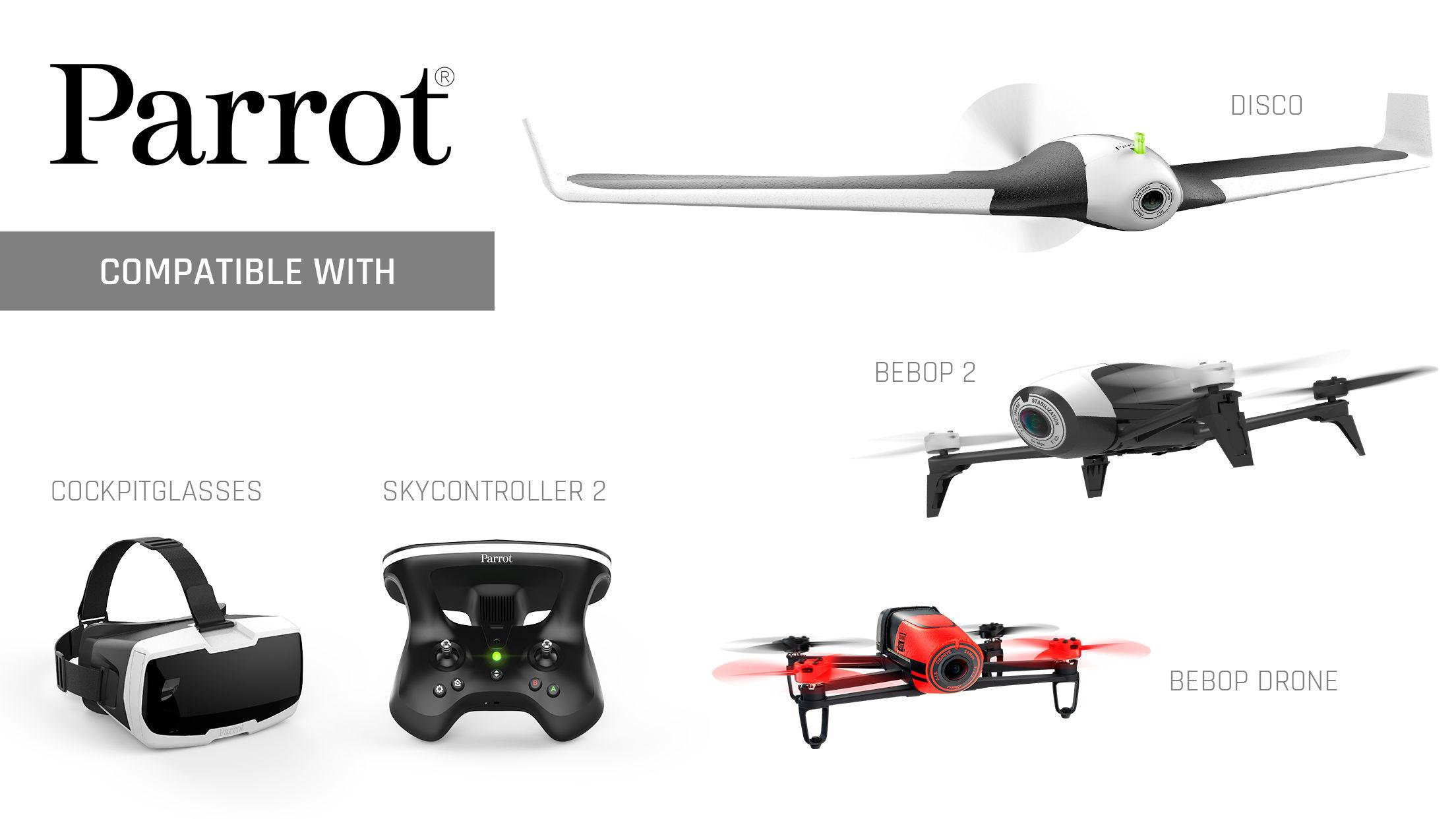
You own a Parrot Anafi, Bebop, or Disco
-
You have basic computer skills (copying files, enabling developer options)
-
You are willing to spend 20-30 minutes on setup
-
You accept that some features (live view) might be broken
This guide will frustrate you if:
-
You expect a one-click install from Google Play
-
You only have a Chromebook or iPad
-
You need perfect reliability for professional drone work
-
You are on Android 16 (nobody has tested it yet)
Final Checklist Before You Fly
Run through this list before your first flight attempt:
-
FreeFlight Pro 5.2.7 APK installed
-
OBB folder in
Android/obb/com.parrot.freeflight3/ -
USB Debugging enabled in Developer Options
-
USB data cable (not charging cable)
-
Skycontroller battery above 50%
-
Drone firmware updated (if possible on old Parrot servers)
My Take After a Week of Testing
The free flight pro 5.2 7 download for android works. The app opens. It connects. Basic flight functions work. But the experience is fragile. One Android update could break everything.
Google is tightening storage access with every release. Android 16 will likely block the OBB workaround entirely. If you fly your Parrot drone for fun, this guide buys you another year or two of flight time. If you depend on this drone for work or serious content creation, sell it now. The software is on life support.
I still fly my Anafi. I use a dedicated Android 11 tablet. The tablet never connects to the internet. It never updates. It just runs FreeFlight Pro forever. That is the real solution.
Have you tried installing FreeFlight Pro on Android 15? Did another method work for you? Drop your experience below. The drone community needs every working solution we can find.