


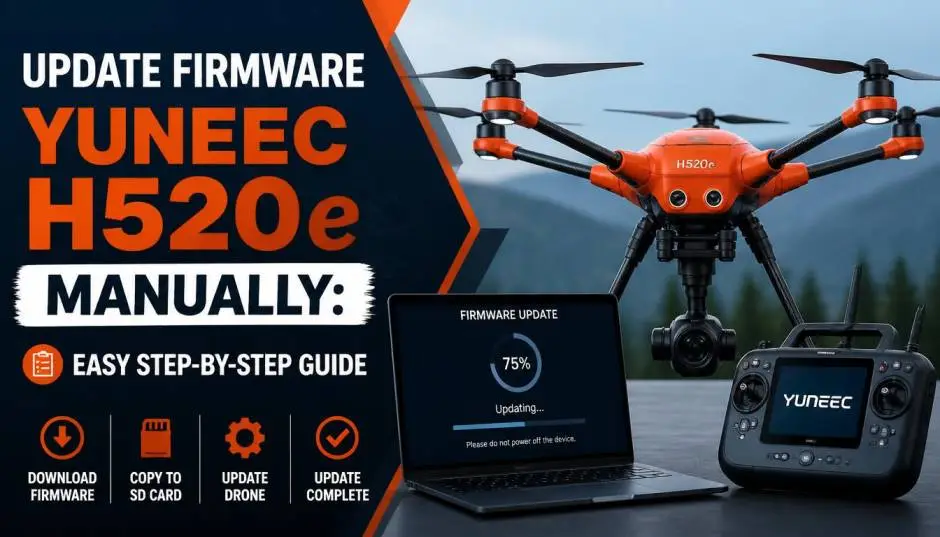
Update Firmware Yuneec H520e Manually: Easy Step-by-Step Guide
I spent three hours last week trying to update my H520e. The WiFi method kept failing. No error code. Just a green icon that turned red after a few seconds. Frustrating.
That experience made me dig into manual updates. Turned out to be simpler than I expected. Once you know the exact steps, the whole process takes maybe twenty minutes.
This guide walks you through updating firmware Yuneec H520e manually. No assumptions. No skipped steps. Just what actually works.
When Manual Update Becomes Necessary?
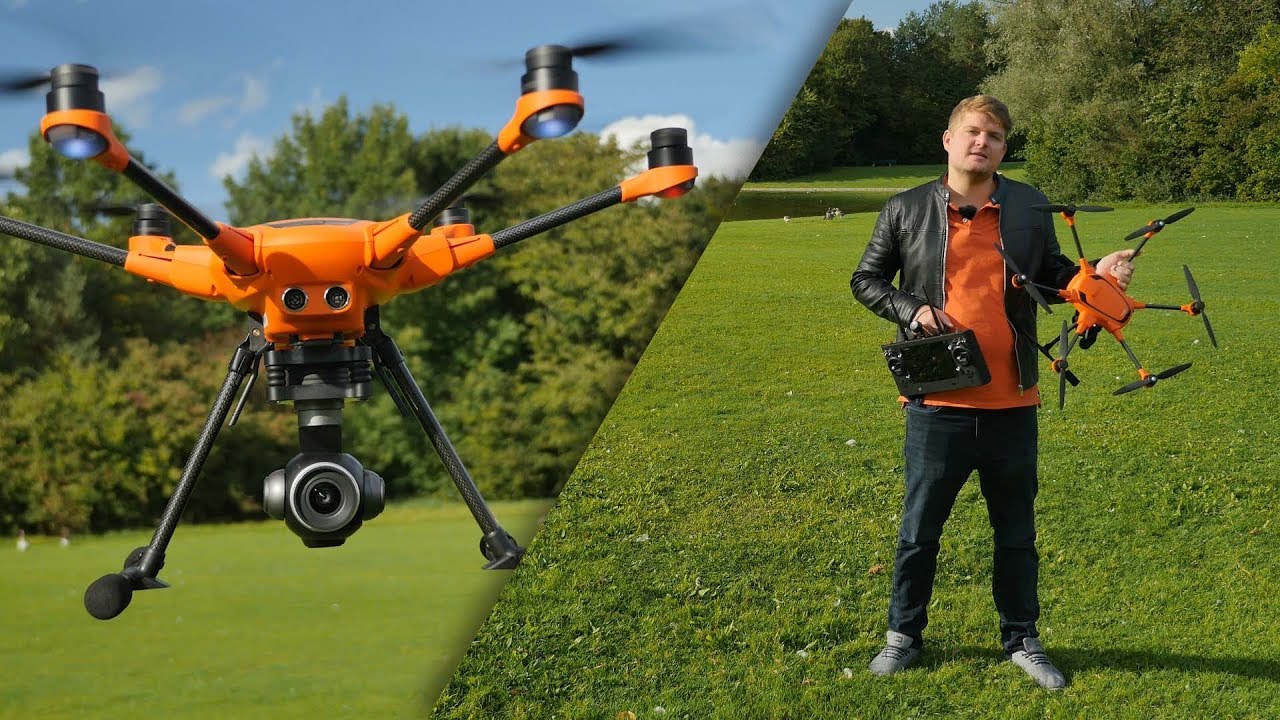
The H520e usually updates over WiFi. Open DataPilot. Tap Version. Check for updates. Download. Install. Simple.
Except when it isn't.
Read Also: Yuneec H520E vs DJI Matrice 350 RTK: Which Enterprise Drone Wins?
Many users report the WiFi update fails with a cryptic error message . The interface shows a green icon briefly, then turns red. No explanation. No solution in the app itself.
This happens because older firmware versions lack proper OTA support. The drone can't pull updates over WiFi until you get past that initial version. It's a catch-22.
Manual installation via USB or SD card bypasses this problem entirely. You take control. You put the files directly where they need to go.
What You Need Before Starting?
A Windows computer. The APK files work on Android, but you need a PC to download and transfer them properly.
A microSD card. 16GB or 32GB works best. Cards larger than 32GB often fail even when formatted correctly.
USB cable. The ST16E needs to connect to the OFDM module for certain updates. Keep a USB cable handy.
Stable internet connection. You need to download firmware files. The Yuneec download center has everything.
Patience. Updates take time. The controller restarts multiple times. Don't interrupt the process.
Step 1: Check Your Current Firmware Versions
Before touching anything, know what you are working with.
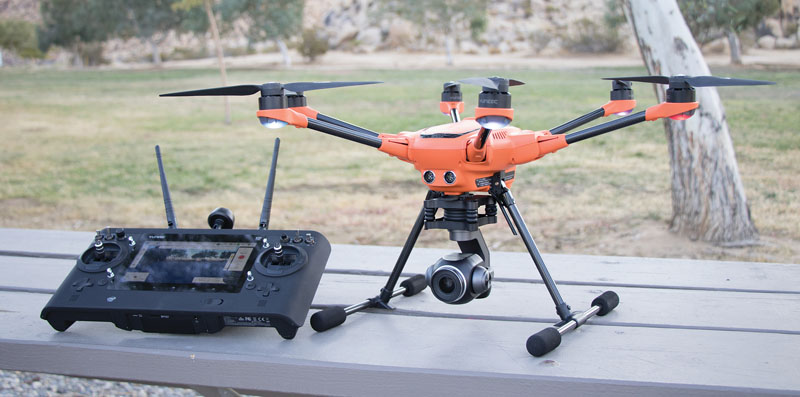
Turn on the ST16E controller. Open DataPilot. Navigate to Settings, then Version. The screen shows firmware versions for every component. Flight controller. Camera. Gimbal. OFDM module. DataPilot app itself.
Write these numbers down or take a photo. You need this for reference.
If the Version menu looks different from what you expect, that is a clue. An older interface suggests an older firmware version. Manual update becomes your best option.
Step 2: Understand Manual Update vs OTA
The H520e supports two update methods.
OTA (Over-The-Air) is the standard WiFi method. Connect controller to network. Tap Check for Update. Download directly. This works perfectly once your firmware is current.
You Must Also Like: Where Are Autel Drones Made? A Simple and Clear Guide
Manual update uses APK files and update.zip packages. You transfer these to the controller via SD card. Install DataPilot manually. Then run updates from local files.
For older firmware, manual is the only path forward.
Step 3: Download the Correct Files
Visit the official Yuneec download center. Navigate to H520e support section.
You need:
-
DataPilot APK file. This is the app itself. Sometimes packaged as a zip file that needs extraction.
-
Update.zip file. This contains firmware for the controller and drone components. Important: DO NOT unzip this file. The controller handles extraction during installation.
Copy both files to your microSD card. Use a card reader connected to your PC. Ensure the card is formatted as FAT32. The controller reads this format reliably.
If using an SD card larger than 32GB, format it with a third-party tool that forces FAT32. Better yet, use a smaller card to avoid issues.
Step 4: Install DataPilot Manually
This is where many users get stuck. The process is straightforward once you know the exact sequence.
Insert the SD card into the ST16E controller. The slot sits under the battery compartment.
On the controller, go to Settings. Scroll to Security. Enable "Unknown Sources." This allows installation from the SD card rather than the Play Store.
Using the Android file manager, navigate to the SD card. Locate DataPilot.APK. Tap to install. You should see the DataPilot icon appear on the home screen.
Open DataPilot. Let it run once. Don't update anything yet. Just confirm it opens properly.
Step 5: Install the Update Package
With DataPilot installed, place the update.zip file on the SD card if you haven't already.
Insert the SD card. Restart the controller. The system should detect the update file automatically and begin installation.
Wait. This takes several minutes. The screen goes black. The controller restarts once, sometimes twice. This is normal.
Do not remove the SD card. Do not power off manually. Let the process complete.
Step 6: Complete the Connection Setup
After the controller updates, some components need separate attention.
Connect the ST16E to the OFDM module using a USB cable. This is required for flight controller, gimbal, and camera updates.
Insert the SD card into the camera itself. Some updates install directly from the camera's card slot.
Open DataPilot again. Navigate to Version. The menu should look different now, with clearer labels and a proper check for update button.
Tap "Check for Update." The system verifies all components. If any need updating, a download button appears.
Step 7: Update Each Component
Click download next to any component that shows an update available.
Once download completes, an Update button appears. Tap it.
Wait for each component to finish. The flight controller takes longest. The camera and gimbal typically complete faster.
Some users report needing to repeat this step multiple times. If an update fails, restart the controller and try again. This is normal behavior during initial upgrades.
Step 8: Verify Everything Worked
Return to the Version menu. Compare current versions to what you had before.
Confirmed updates should show higher version numbers. The interface itself should feel smoother, more responsive.
More importantly, the OTA update now works. Future updates happen over WiFi. No more SD card manual transfers.
Critical Warning Before Updating
Here is what experienced pilots told me before I attempted this.
"Do not update if your system is working perfectly". I ignored this advice once. Regretted it.
The Yuneec update history has some problems. Failed updates cause bricked controllers, blank screens, and unrecoverable errors. These are not rare. The forum archives contain hundreds of reports.
The ST16 is especially sensitive. Installing the wrong firmware version sometimes permanently damages the screen.
So ask yourself honestly: Do you need this update? What problem are you solving?
If the drone flies fine. If the camera works. If gimbal responds correctly. Leave it alone. The risk might not be worth it.
Troubleshooting Common Issues
The controller doesn't detect the update.zip file.
Check SD card size. Cards over 32GB often fail even with FAT32 formatting. Switch to a 16GB card. Verify the file is on the card root directory, not inside a folder.
DataPilot won't install.
Check that "Unknown Sources" is enabled. Also verify the APK file is complete. Corrupted downloads cause installation failures.
Updates fail with green then red icon.
This is the classic symptom of needing manual update. Delete the current DataPilot app. Download the latest version from the website. Install fresh.
Controller shows a blank screen.
This is serious. It means firmware incompatible with the screen hardware. Recovery is difficult. Some users have recovered by finding specific older firmware versions. Others could not.
My Experience After the Update
I updated because my gimbal occasionally lost level. Not a critical problem but annoying.
The manual process worked. I used a 16GB card. Installed DataPilot first. Then the update.zip. The controller rebooted twice. I connected the USB cable for component updates.
Final result: The gimbal stayed level. The interface looked cleaner. WiFi updates now work.
Would I do it again? For that specific problem, yes. For a perfectly working drone, no. Not worth the risk.
The Final Thoughts
Manual updating firmware Yuneec H520e requires careful preparation. The rewards are OTA capability and resolved bugs. The risks include bricked equipment and hours of troubleshooting.
Before you start, evaluate your actual need. If the drone performs well, consider leaving it alone. If you proceed, follow each step exactly. Verify file compatibility. Use the right SD card. Enable unknown sources. Install DataPilot first. Then update files.
And remember: If something fails, restart and try again. The system often completes on the second attempt. If it keeps failing, stop. Seek help from Yuneec forums before doing further damage.
After your manual update, future upgrades become simpler. Plug in. Connect to WiFi. Let the app handle it. That initial effort saves you headaches down the road.